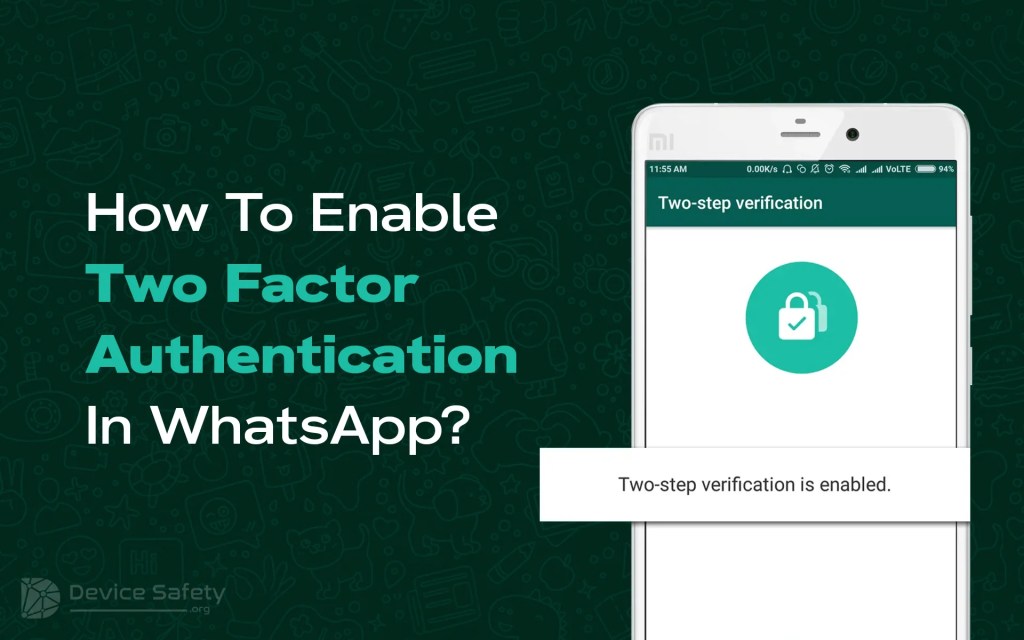
Are you looking to enable two-step verification in WhatsApp but need to know how to do so? When you try to activate WhatsApp’s two-factor authentication, the application will ask you to create a unique Six-digit code to register the account on a new device. This means you will no longer have to set up an account again whenever you use a new device. WhatsApp two-factor authentication protects your account and prevents attackers from trying to hack a user’s account to another phone without their consent. Let’s read how to enable two-step verification on WhatsApp.
Enable two-step verification on WhatsApp.
- Open your WhatsApp on your device.
- Tap the “three dots” main menu button in the upper left corner of the screen. Then, go to the application’s “Settings.” If you have iOS, tap the Settings icon from the bottom menu.
- Click “Account”, then tap on “Two-Step Verification”.
- Tap “Enable” and enter a six-digit PIN code for WhatsApp two-factor authentication.
- Again, enter the PIN code to confirm it.
- Please enter a valid email address, confirm it by re-entering it, click “Save”, and then “Done.”
Now you can see two-step verification in WhatsApp has been enabled. If you forget your PIN for two-step verification, this email address will be used. Additionally, you can reset the PIN code. So, you need to enter your PIN when logging in again Whatsapp number. If you have uninstalled WhatsApp from your device and then tried to re-install WhatsApp, then you have to verify your phone number by using a six-digit PIN. Likewise, if you lose your phone or SIM and someone tries to activate WhatsApp with your number. In that case, he will not be able to do it since you have to use the PIN code.
However, occasionally, users might want to switch off two-factor verification on WhatsApp for different reasons, like always changing their devices or forgetting their passwords. Nonetheless, it is essential to note that turning off your WhatsApp two-step authentication may expose your account to security threats and hacking, so you should think carefully before disabling it. So, let’s see how to disable WhatsApp’s two-step verification.
How to Disable Two-Step Verification in WhatsApp
- Tap on the “three dots” in the upper left corner of the screen and click “Setting”. In iOS, you can directly click on “Setting” from the bottom menu.
- Select Account, then click on Two-Step Verification.
- Click the “Disable” link, and in the pop-up window, click “Disable” again.
- Now, you have disabled two-step verification on WhatsApp.
Conclusion
So, I have shared all the details about enabling two-step verification on WhatsApp and how to disable it. Two-step verification helps to secure your WhatsApp account from hackers and other vulnerabilities. It also protects your account from people trying to access your Whatsapp account without your consent.
FAQs
Does WhatsApp have two-step verification?
Yes. WhatsApp has a two-step verification feature, and it is totally optional. You can enable it by following some steps and disabling it easily.
Is it safe to enable two-factor authentication?
Yes, WhatsApp’s two-factor authentication is entirely safe for users and will create a wall between you and hackers.
How do I activate the 2-step on WhatsApp?
- Click on “three dots” and go to the “Setting.”
- Click on “Account” and tap on “Two-Step Verification.”
- Enter your “Six digit code” and confirm it.
- Enter your valid Email address and Save the process.
Can someone use my WhatsApp account without a verification code?
If someone has your SIM and Email ID, your WhatsApp account is accessible. However, without a six-digit verification code, it is not possible to use your Whatsapp account.


Leave a Reply